As of 10 November 2026. Resource type: guide. Statements about Scalera come from the product page, the FAQ and the ACO case study on scalera.ai; details on text recognition and PDF tables come from the Tesseract documentation and the W3C. All sources opened on 10 November 2026. Recommendations are marked as such.
Short answer
- Goal: turn a PDF or scan into a position list with item number, short and long text, quantity and unit.
- First test: can you select and search the text in the PDF? If not, it is an image and needs text recognition.
- Risks: page breaks, tables without structure, quantities inside running text and weak scans.
- Before matching: a short QA routine with a spot check against the original.
- GAEB available? Use the GAEB file; this guide covers the case without one.
Scope: this guide is about the import. Content analysis is covered in «Analyse a bill of quantities with AI».
What does extracting a bill of quantities from a PDF mean?
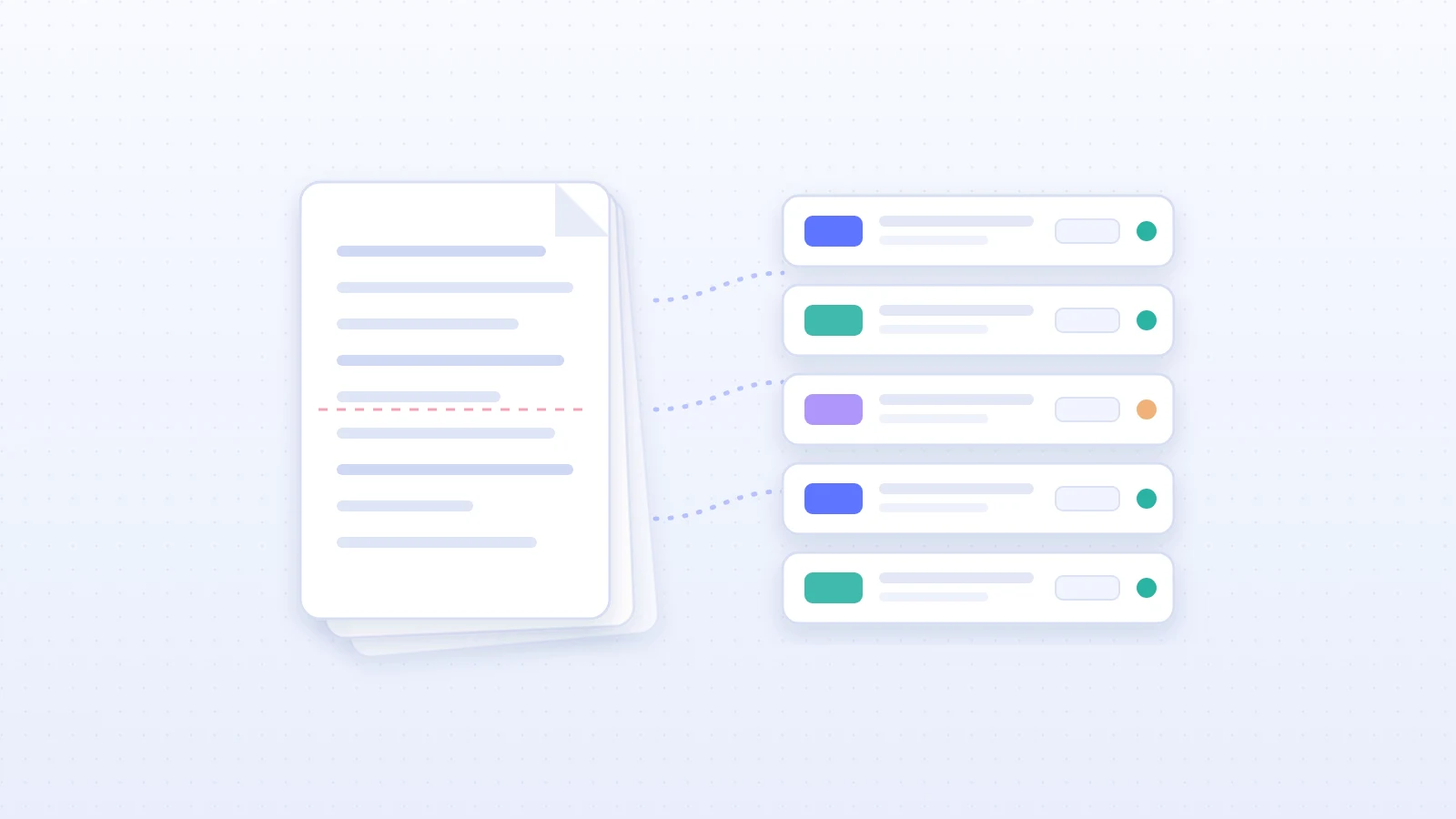
It means turning every position of a bill of quantities into its own checkable line: item number where printed, short text, long text, quantity and unit. Every value that could not be read with certainty gets a flag. Only this list is a sound basis for product matching and the quote.
This guide covers only the import, the path from document to position list. What the positions mean, such as item types, long text and preliminary notes, is explained in Analyse a bill of quantities with AI. Which exchange formats exist and why GAEB, ÖNORM and NPK are faster is covered in GAEB, ÖNORM, NPK.
Digital PDF or scan: the first test
Before you extract anything, clarify what you are holding. The simplest test takes seconds: open the PDF and try to select an item number or find it with the search function.
- Text can be selected and found: it is a digitally created PDF. The text exists; the task is to put it back into positions.
- Nothing can be selected: it is a scan or photo of the page. The text first has to be created by text recognition (OCR).
- Mixed: part is digital, attachments or addenda are scanned. Treat those pages as a scan.
With scans, the source decides the quality. The documentation of the open-source OCR engine Tesseract names at least 300 dpi as the resolution at which recognition works best and describes skewed pages and dark scan borders as causes of errors (Tesseract documentation). Where possible, ask for the original PDF or a better scan instead of correcting a blurred image.
What a clean position line contains at minimum
A position list is usable when every line is understandable on its own. As a minimum structure, we recommend five fields plus a flag:
- Item number: exactly as printed, including the hierarchy. It is the key for finding every line in the original later.
- Short text: the name of the position.
- Long text: complete, even when it runs onto the next page. It carries the technical requirements.
- Quantity: as a number, without thousands or decimal errors.
- Unit: for example m, m², pcs or lump sum, exactly as specified.
- Flag: marks uncertain values, missing fields or places that need checking against the PDF.
Chapters and titles belong to each line as an assignment, so positions can later be distributed by area. How a bill of quantities is structured and what role the long text plays legally is explained in Analyse a bill of quantities with AI.
Five failure patterns and how to spot them
The following errors arise on the way from document to line, not during product selection. Simple checks find them.
| Pattern | Effect | Check |
|---|---|---|
| Page break | Quantity ends up on the wrong position | Last position of each page against the original |
| Untagged table | Columns shift, values swap | Compare column count per row |
| Quantity in text | Quantity or unit missing | Every position has quantity and unit |
| Poor scan | Digits misread | Flag uncertain values and re-read them |
| Truncated text | Specification missing for matching | Compare the end of the text with the PDF |
Own compilation. Background on tables in PDFs: W3C, technique PDF6; on scans: Tesseract documentation.
Page breaks separate text and quantity
A bill of quantities is typeset for printing, not for further processing. When a position runs over the end of a page, long text and quantity sit on two pages with headers and footers in between. A simple export then reads the header into the middle of the long text or attaches the quantity to the next position.
Example (fictitious): page 14 ends with «03.04.0120 Mineral wool thermal insulation, thickness 140 mm, laid in two layers». Page 15 starts with the project header, followed by «incl. fixings, 312.50 m²». Correct is one line: item 03.04.0120, complete long text, quantity 312.50, unit m². Wrong would be one position without a quantity and a second one without an item number.
Not every table in a PDF is a table
What looks like a table on screen is a table for software only if it is marked up as one in the PDF, with table, row and cell tags. The W3C points out that automatically created table tags are not always correct and should be checked (W3C, technique PDF6). Without tags, the column assignment has to be inferred from where characters sit on the page. This is where quantities can slip into the wrong column.
Quantities and units sit in running text
Not every bill of quantities has its own quantity column. If the quantity sits at the end of the description, it has to be separated from the text. Check decimal separators and thousands separators in particular, as senders set them differently.
Scans distort digits
Stamps, handwritten notes, skew and low resolution lead to misread characters. Tesseract also notes that text in tables is hard to recognise without custom layout analysis (Tesseract documentation). For item numbers and quantities every digit counts, so uncertain values should be flagged rather than guessed.
Long texts get truncated
An export can take only the first line of a position. Matching then lacks exactly the specification that decides the right product. During a spot check, compare the end of the text with the PDF. Why matching depends on complete texts is covered in Product matching at scale.
QA routine before product matching
These eight points are our recommendation for a short check before the position list goes into matching. They do not replace the technical review; they stop import errors from slipping through to the quote.
- Completeness: compare the PDF page count with the processed pages, including attachments and addenda.
- Item numbers: each item number appears exactly once, and the sequence is gap-free and plausible.
- Quantity and unit: every position has both, and both belong to the same position.
- Long texts: not truncated, no headers or footers inside the text.
- Lump sums: positions marked as lump sum are recognised as such and not confused with a piece count.
- Uncertainties: uncertain values are flagged, not silently accepted.
- Spot check: check five to ten positions line by line against the original, especially at page ends.
- Ownership: distribute positions by product group only afterwards, so every team works on checked data.
An import error caught before matching costs a minute. The same error in a quote that has been sent costs trust.
When another starting point is better
- There is a GAEB, ÖNORM or NPK file: use it. Structured formats already contain the hierarchy; what matters there is covered in GAEB, ÖNORM, NPK.
- The planner sends Excel: Excel already delivers rows, but check empty or merged cells. Whether you then keep estimating in Excel or use specialised software is a separate question; see Excel or quoting AI.
- The request is only in the email: according to the FAQ, Scalera recognises tender requests directly in email text, even without a separate document (Scalera, FAQ).
For recurring senders, ask about the exchange format. A single question can save several import rounds.
From import to quote: where Scalera comes in
According to the product page, Scalera reads tenders as PDF, scan, Excel, GAEB, NPK, ÖNORM and further standards, and it still captures requirements when a position runs across a chapter or page break (Scalera, Product Matching). When your team opens the tender, positions are pre-extracted and categorised, and the work is validating the AI recommendations (Scalera, Product Matching).
Scalera categorises positions by product groups so team members can work on their sections; confidence scores show certainty, and low-confidence matches are flagged for review (Scalera, FAQ). If a conversion factor exists in your product data, Scalera converts units automatically; otherwise you get a notification (Scalera, FAQ). To hand results to ERP, CPQ or CRM systems, Scalera exports via CSV, XML, GAEB or API (Scalera, Product Matching).
ACO shows the time saved in practice: a 300-page tender took 30–45 minutes manually and 10–15 minutes with Scalera; all suggestions are reviewed and approved by experienced staff (ACO case study). Which product data matching needs next is covered in Product data for tenders. How to measure this with your own documents is shown in the pilot test plan.
Key takeaways
- PDF and scan are an import problem; product matching starts only afterwards.
- The selection test shows in seconds whether you have a digital PDF or a scan.
- A clean line has item number, short and long text, quantity, unit and a flag for uncertain values.
- Page breaks, untagged tables, quantities in running text and weak scans are the typical sources of errors.
- If a GAEB file exists, it takes priority over the PDF.
Want to see how your own PDF and scanned bills of quantities arrive as positions? You can book a demo and bring a current bill of quantities.
Frequently asked questions
What does extracting a bill of quantities from a PDF mean?
Every position of the bill of quantities is taken from the PDF as its own line: item number, short text, long text, quantity and unit, plus a flag for uncertain values. Products are matched only after that.
Can I extract a bill of quantities from a scanned PDF?
Yes, through optical character recognition (OCR). Quality depends on the scan: Tesseract recommends at least 300 dpi and names skewed pages and dark scan borders as typical sources of errors (Tesseract documentation). Scalera processes scanned and digital PDFs (Scalera, FAQ).
When is a simple PDF-to-Excel export enough?
When the PDF contains a real, correctly tagged table and no position runs across a page break. Table structure in a PDF is machine-readable only through tags, and automatically created tags are not always correct, according to the W3C (W3C, technique PDF6). Spot-check quantities and units afterwards anyway.
What should be checked before product matching?
Completeness of pages, gap-free item numbers, quantity and unit on the right position, complete long texts and flagged uncertainties. The eight points are in this guide's QA routine.
Which document types does Scalera process?
According to the FAQ: PDFs (scanned and digital), GAEB files, Excel/CSV, XML, emails with free text or attachments, and ÖNORM/ONLV formats (Scalera, FAQ). The product page also lists NPK (Scalera, Product Matching).
How is this guide different from «Analyse a bill of quantities with AI»?
This guide covers the import: how a PDF or scan becomes position lines. What the positions mean, such as item types, long text and preliminary notes, is covered in Analyse a bill of quantities with AI.
Does Scalera read plans and drawings?
According to the FAQ, Scalera excels at text-based specifications; for drawings it extracts relevant text information and technical parameters rather than interpreting the visuals (Scalera, FAQ).
Sources
- Product Matching page on scalera.ai, opened on 10 November 2026
- FAQ on scalera.ai, opened on 10 November 2026
- ACO case study on scalera.ai, opened on 10 November 2026
- Tesseract documentation: Improving the quality of the output, opened on 10 November 2026
- W3C, WCAG 2.2 technique PDF6: Using table elements for table markup in PDF Documents, opened on 10 November 2026